How to Read Generation Logs
Table of Contents
Where to Find Logs
Open an article page → go to the Logs tab. All pipeline steps are listed with timestamps, durations, and statuses.
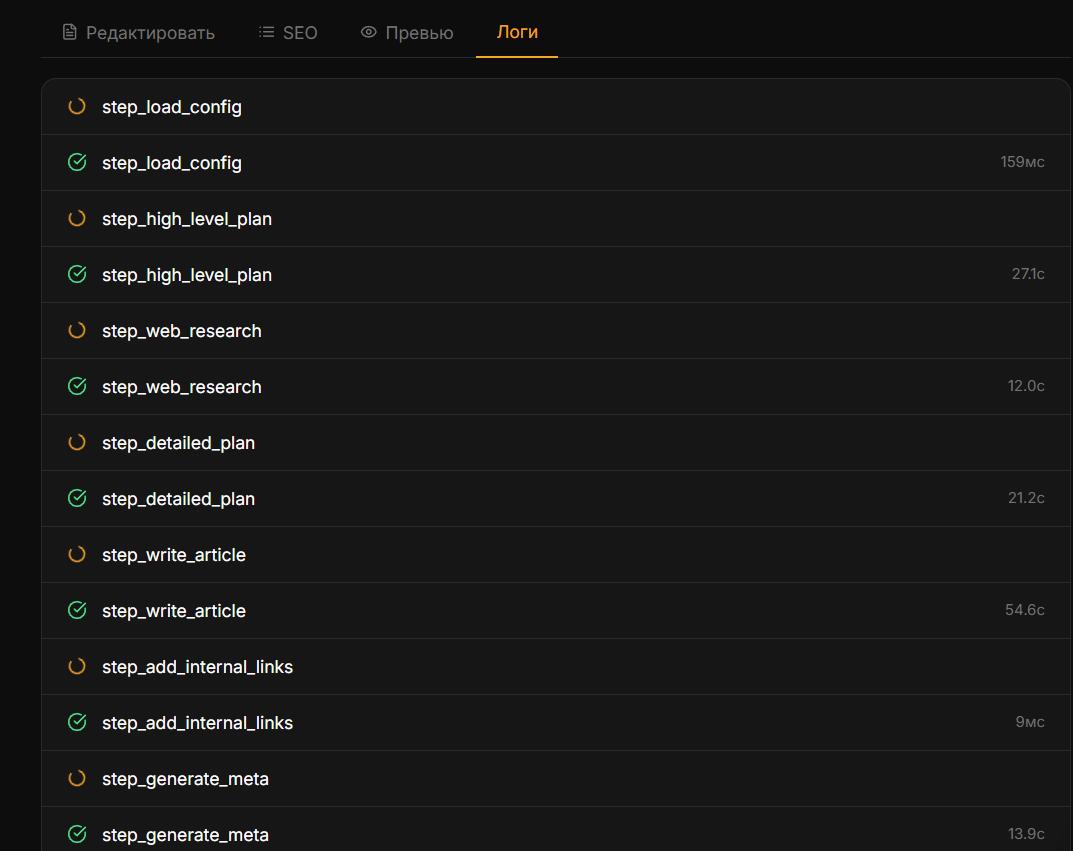
What Each Log Row Contains
Step — internal step name (
step_write_article,step_process_images, etc.)Status — green checkmark (success) or red cross (error)
Duration — how many seconds the step took
Tokens — input + output tokens (only for AI-call steps)
Error message — detailed text if status is error
What to Look For
step_web_research failed → OpenAI key issue or no balance
step_write_article failed → Gemini or OpenRouter key issue (longreads)
step_process_images failed → SerpAPI key not configured or quota exceeded
step_generate_cover failed → system kie.ai key unavailable (non-critical — article still publishes)
step_publish_to_cms failed → CMS connection issue (wrong password, site unreachable)
step_update_seo_meta failed → article is published, only SEO meta wasn't written; use Republish to retry
Longread vs Standard
The standard pipeline has 19 steps; longreads have ~31 steps (competitor analysis, writing, ultraization, etc.). A normal total log duration for longreads is 10–20 minutes.
If the Log Cuts Off Mid-Way
This means the step timed out or the worker crashed. Click Retry — for longreads, the pipeline resumes from the last successful step (checkpoint recovery).
In this section
Was this article helpful?