Managing Clients in Agency Mode
Table of Contents
Inviting a Client
Go to Agency → Clients
Click Invite Client
Enter the client's email and click Invite
If the client is already registered — they're linked to your agency immediately. If not — they receive an invitation email to register.

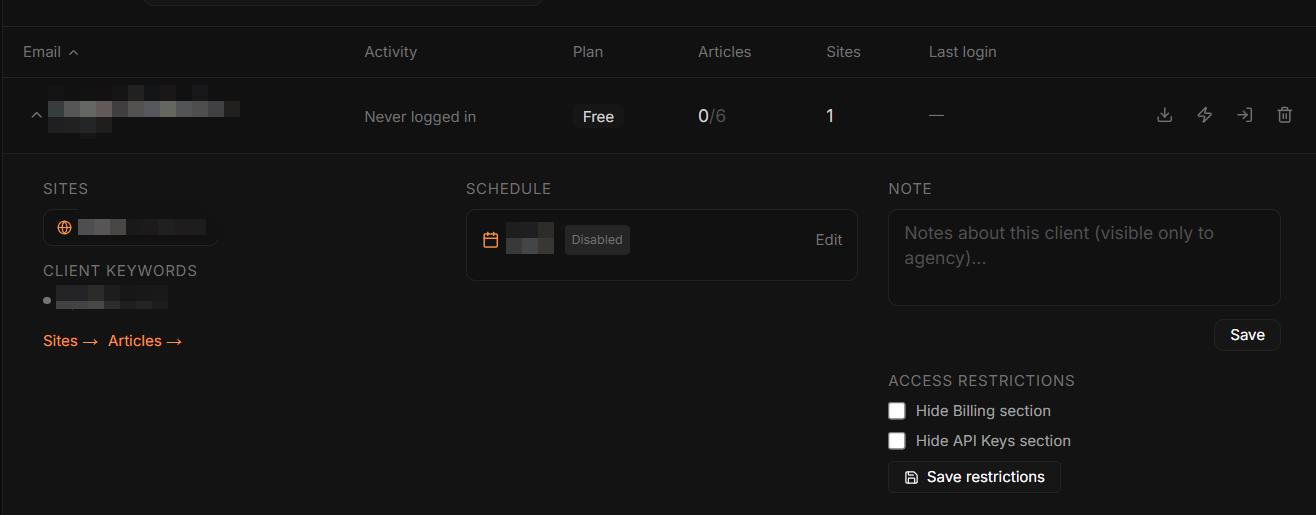
Client Access Restrictions
For each client you can hide sections they don't need:
Hide Billing — client can't see or change their plan
Hide API Keys — client can't see or change keys (uses your agency keys)
Per-Client Article Quota
Click the article count on a client row to set a monthly quota — how many of your agency's shared articles this client can use. Useful for fair resource allocation.
Client Notes
Each client card has a Note field visible only to the agency. Use it to store client preferences, special instructions, or reminders.
Login as Client
Click Login as client to switch into their account. A banner appears at the top showing the client's name and a Return to agency button.

Removing a Client
Click Remove client to unlink the client from your agency. Their account and data remain intact.
Was this article helpful?