Setting Up API Keys
Table of Contents
Two Types of API Keys
AI SEO Writer has two places for API keys:
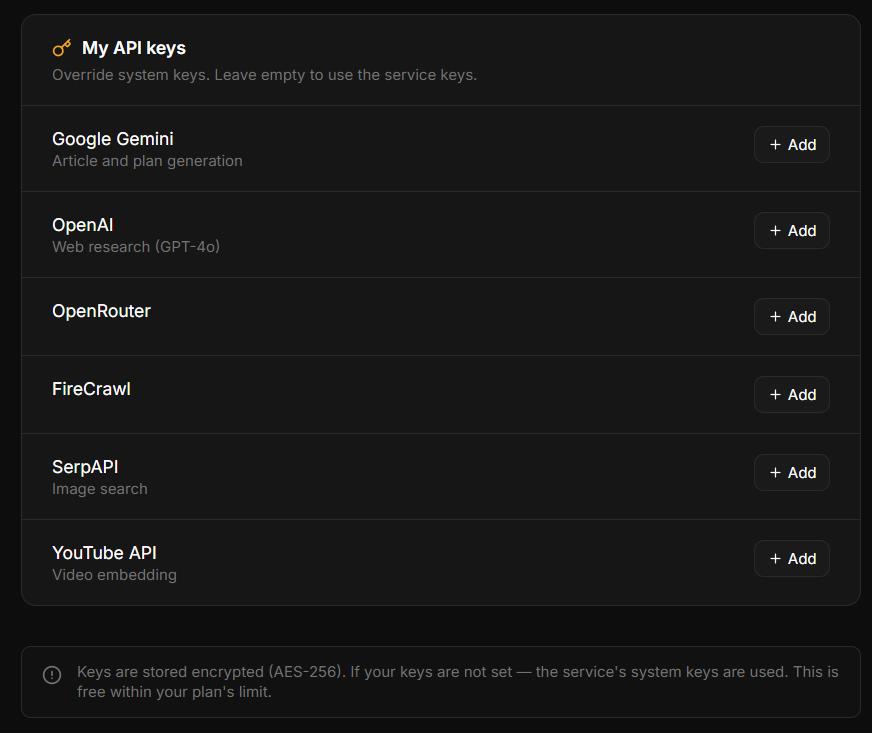
Account-level keys — apply to all your sites. Set in Account → My API Keys.
Site-level keys — apply to one specific site. Set in Sites → [Your site] → Settings → Additional APIs.
Account-Level Keys (Account → My API Keys)
Gemini API — main content generation (planning, writing, meta, SEO variants)
OpenAI API — web research: AI with live web access gathers current facts before writing
OpenRouter API — required for Longread mode (extended set of AI models)
Site-Level Keys (Site Settings → Additional APIs)
SerpAPI — image search (Google Images). Without it, articles publish without inline images.
YouTube Data API v3 — video embedding. Without it, the video step is skipped.
[SCREENSHOT: Site Settings → Additional APIs section showing SerpAPI and YouTube Data API v3 fields]
Key Priority
Your own key is always used first. If not set, the system key is the fallback — articles always generate even without personal keys.
Free Plan Note
On the Free plan, account-level keys (Gemini, OpenAI, OpenRouter) cannot be added — only system keys are used. Upgrade to Starter or higher to add your own keys. Site-level keys (SerpAPI, YouTube) can be added on any plan.
How Keys Are Stored
All API keys are encrypted with Fernet (AES-128 CBC + HMAC-SHA256) before saving. Never stored in plain text. See How keys are stored securely.
In this section
Was this article helpful?