Account Settings
Table of Contents
The Account Section
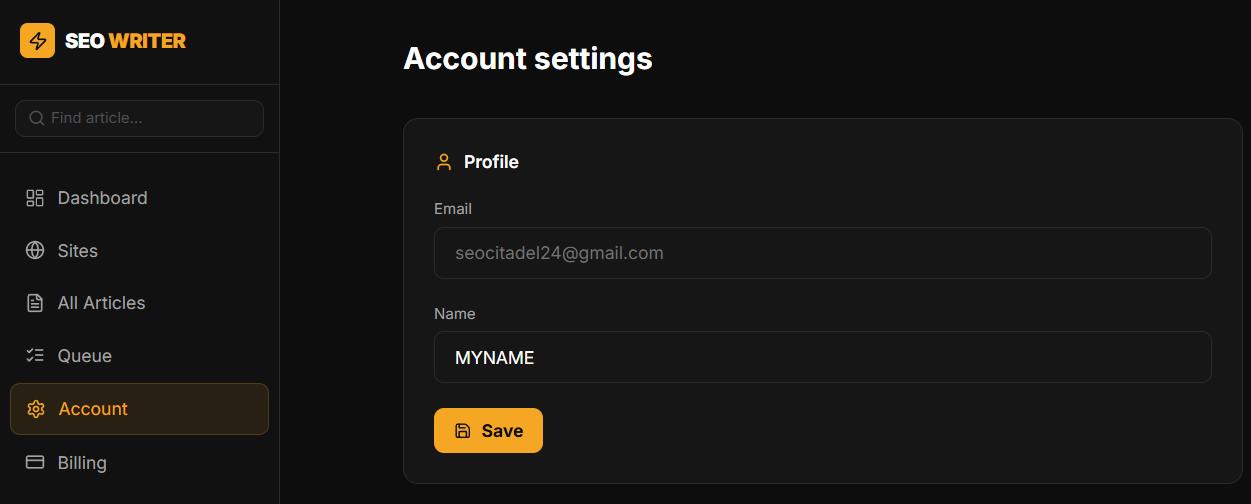
Go to Account in the sidebar. It contains: profile settings, password change, API keys, notifications, and subscription info.
Changing Your Display Name
In Account → Profile, find the Name field
Enter your new display name
Click Save
Your email address is shown in the profile but cannot be changed — it is permanently tied to your account.
Changing Your Password
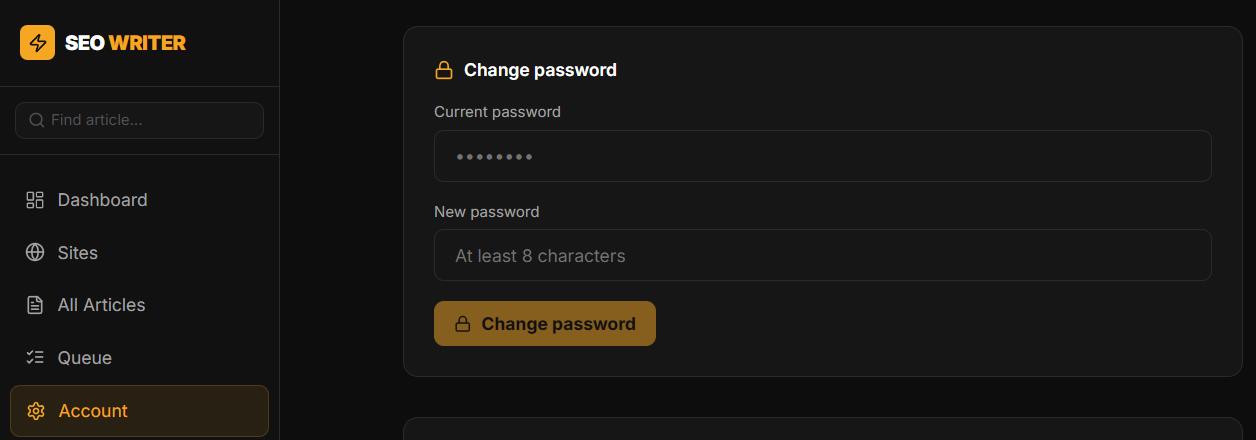
To change your password while logged in, your current password is required:
In Account, find the Change password section
Enter your current password
Enter a new password (minimum 8 characters)
Click Save
If you don't remember your current password, use password recovery (reset via email).
Subscription Info
In Account → Subscription you can see:
Your current plan
Subscription expiry date
Article credits used and remaining this month
To switch plans, click Manage subscription to go to Billing.
API Keys and Notifications
API key management and notification settings are also in the Account section. See: API Key Setup and Notifications.
In this section
Was this article helpful?