Connecting 1С-Bitrix
Table of Contents
How the Integration Works
AI SEO Writer publishes articles to 1С-Bitrix via a PHP script (seowriter.php) that you install on your server. The script receives article data and creates an info block element via Bitrix's internal API.
Step 1: Download and Install the Script
In the site connection form, select 1С-Bitrix as the platform
Click Download seowriter.php
Upload the file to the root of your site — the same directory as the
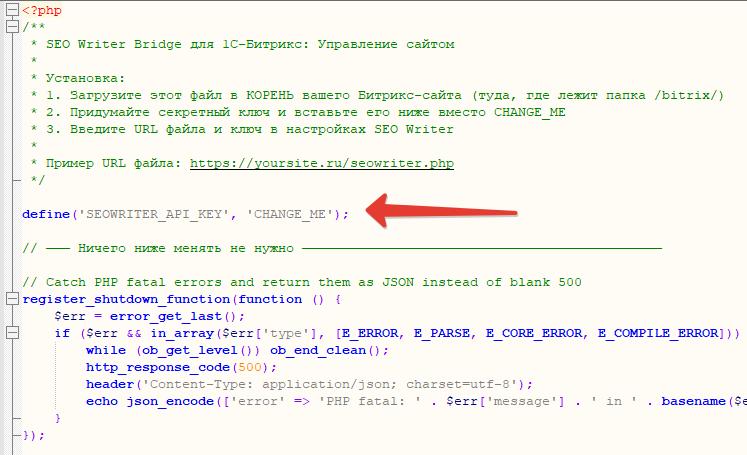
/bitrix/folderOpen the file in a text editor and replace
CHANGE_MEwith a secret key of your choice
Step 2: Fill in the Connection Form
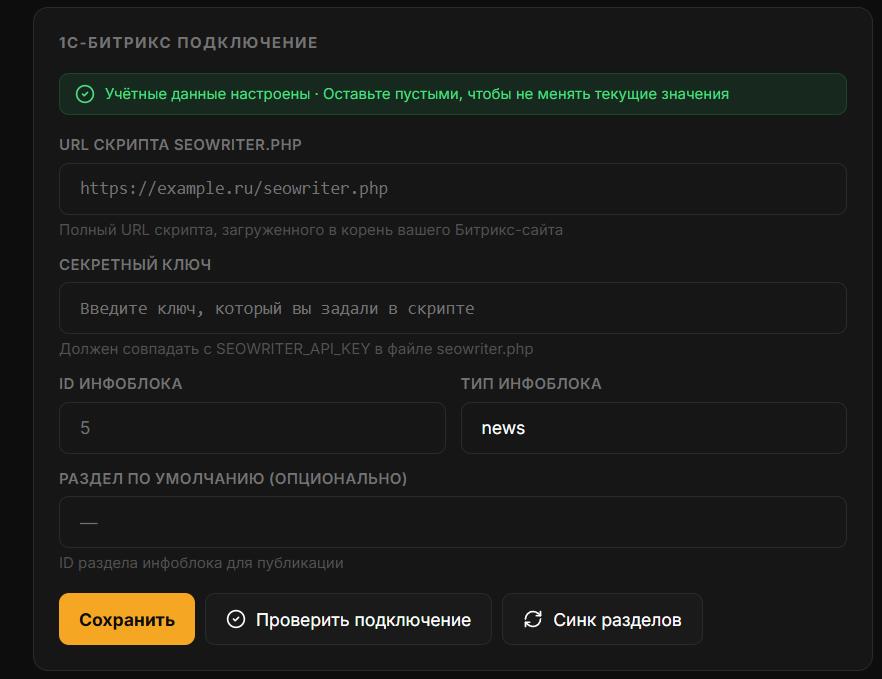
Script URL — full URL of the uploaded file, e.g.
https://yoursite.ru/seowriter.phpAPI Key — the same secret key you put in the script
Info Block ID — numeric ID of the Bitrix info block where articles will be created (e.g.,
5)Info Block Type — usually
newsSection ID (optional) — default section for new articles
Step 3: Test the Connection
Click Test connection. If successful, click Save.
Common Errors
Script not accessible via URL — verify that
seowriter.phpopens in a browserSecret key mismatch — the key in the form must exactly match the key in the file
Wrong info block ID — check in Bitrix admin panel under Content → Info Blocks
Updating Connection Credentials
If the secret key or script URL changes — do not delete the site. Deleting it will remove the link index and article history.
Go to Sites → [Your site] → Settings → Connection
Update the script URL, API key, or other fields
Click Test connection, then Save
In this section
Was this article helpful?