Connecting Joomla
Table of Contents
Requirements
Joomla 4.0 or higher with REST API enabled
A user account in the Administrator or Super User group
Step 1: Create an API Token in Joomla
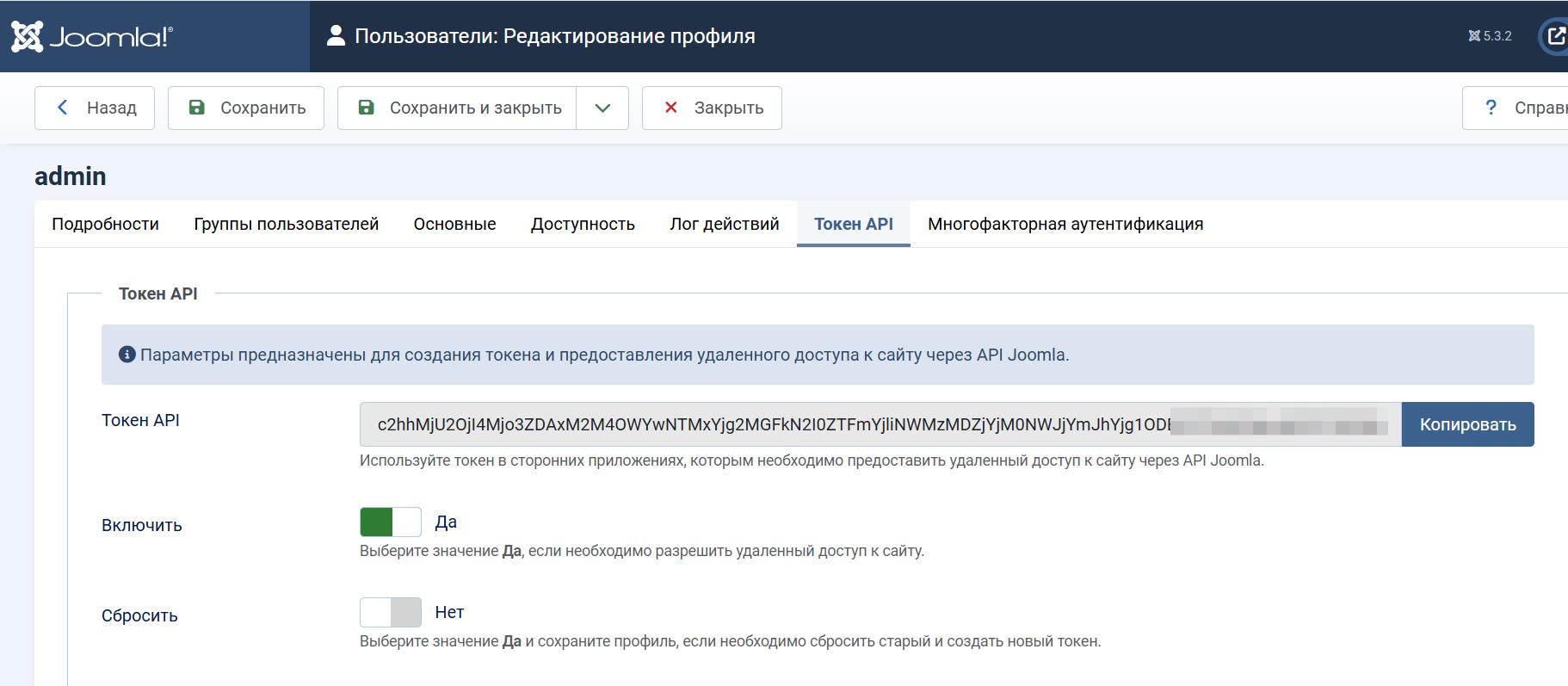
In the Joomla admin panel, go to Users → Manage
Open the administrator user's profile
Go to the Joomla API Token tab
Click Generate and copy the token
Step 2: Connect in AI SEO Writer
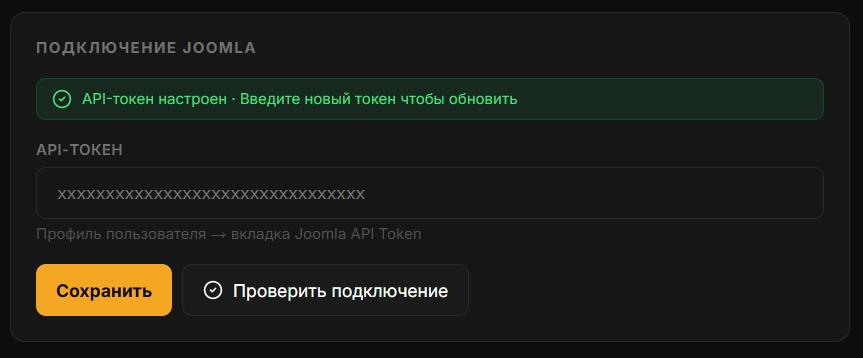
Go to Sites → Add site → Joomla
Enter the Site URL (without trailing slash, e.g.
https://yoursite.ru)Enter the API Token from step 1
Click Test connection
Click Save if the test succeeds
What Happens When Publishing
Articles are created via Joomla's standard REST API as content items (com_content). The default category is "Uncategorised" (ID 2). Cover images are uploaded to the Joomla media library and set as the intro image.
Common Errors
HTTP 401 Unauthorized — invalid API token. Generate a new one in the Joomla user profile.
HTTP 403 Forbidden — insufficient user permissions. Make sure the user is in the Administrator or Super User group.
Cannot connect to site — verify the URL is correct and the site is accessible over HTTPS.
REST API disabled — in Joomla 4+, the REST API is enabled by default, but some security plugins may block it. Check that the System - Joomla! API Authentication plugin is enabled.
Updating Connection Credentials
If the API token changes — do not delete the site. Deleting it will remove the link index and article history.
Go to Sites → [Your site] → Settings → Connection
Paste the new API token
Click Test connection, then Save
In this section
Was this article helpful?