Connecting InSales
Table of Contents
What You'll Need
Store subdomain (the part before
.myinsales.ru)API login and API password from InSales settings
Blog ID where articles will be published
Step 1: Get Your API Credentials
Log in to InSales admin
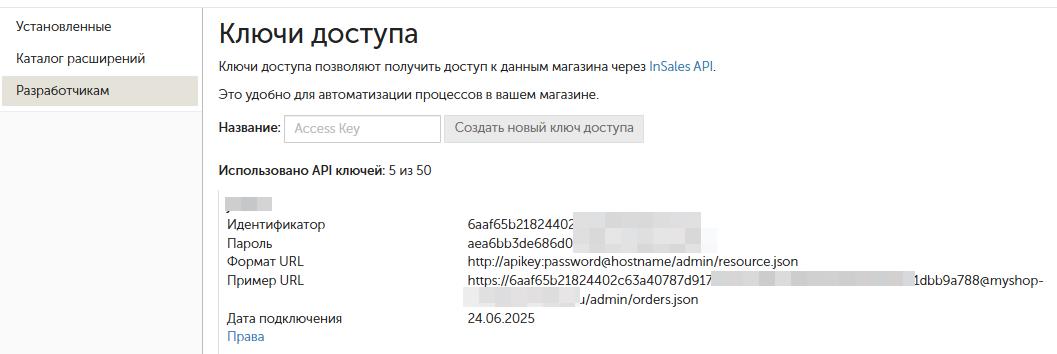
Go to Extensions → For Developers
Copy the API login and API password
Step 2: Find Your Blog ID
In InSales admin, go to Content → Blogs
Click the blog where you want to publish articles
Look at the browser URL — the number at the end is your Blog ID (e.g.,
/admin/blogs/5850797→ ID:5850797)

Step 3: Connect in AI SEO Writer
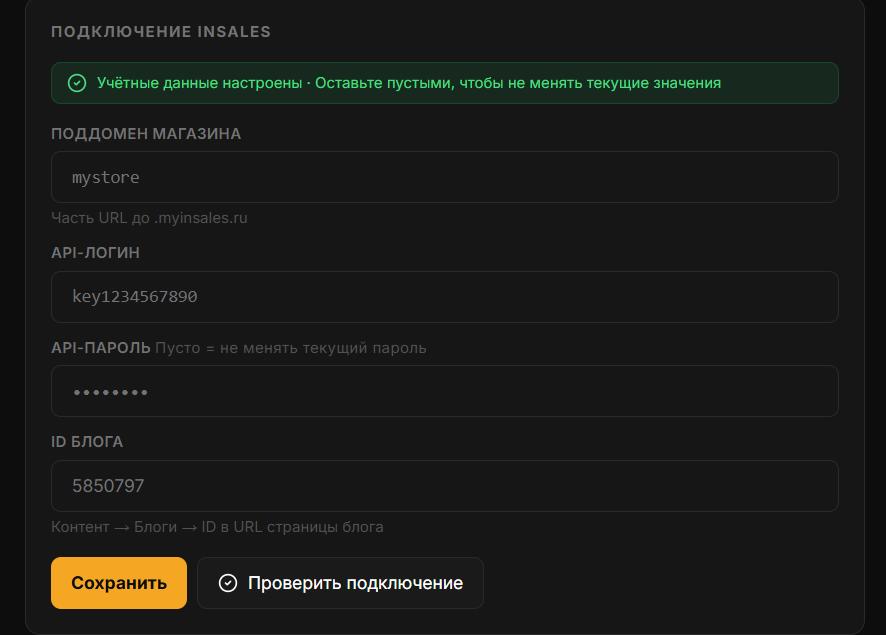
Go to Sites → Add site → InSales
Fill in:
Subdomain — e.g.
myshopformyshop.myinsales.ruAPI Login and API Password from step 1
Blog ID from step 2
Click Test connection, then Save
Updating Connection Credentials
If the API password changes — do not delete the site. Deleting it will remove the link index and article history.
Go to Sites → [Your site] → Settings → Connection
Update the relevant fields
Click Test connection, then Save
In this section
Was this article helpful?