Generating Your First Article
Table of Contents
Before You Start
Make sure you have at least one site connected and at least one keyword added.
Step 1: Open Your Site's Keywords
Click Sites in the sidebar, select your site, then go to the Keywords tab.
Step 2: Add a Keyword
Click + Add, enter your target keyword (e.g. "how to choose bathroom tiles"), and save.
Step 3: Start Generation
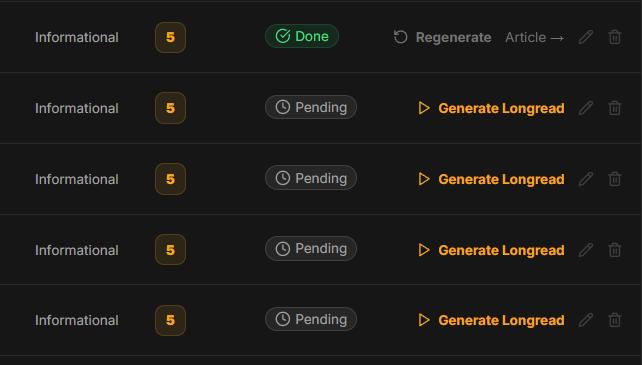
Click the Generate button next to the keyword. Choose the mode:
Standard — available on all plans, including Free
Longread — available on Starter and above. On the Free plan, this option is grayed out.
Step 4: Wait for the Result
A standard article takes 3–5 minutes. You'll see a progress bar showing the current pipeline step. You can close the tab — generation runs on the server.
When done, the article is automatically published to your site (or saved as a draft, depending on your settings).
If Something Goes Wrong
If the article fails, see Article Stuck in Queue.
In this section
Was this article helpful?